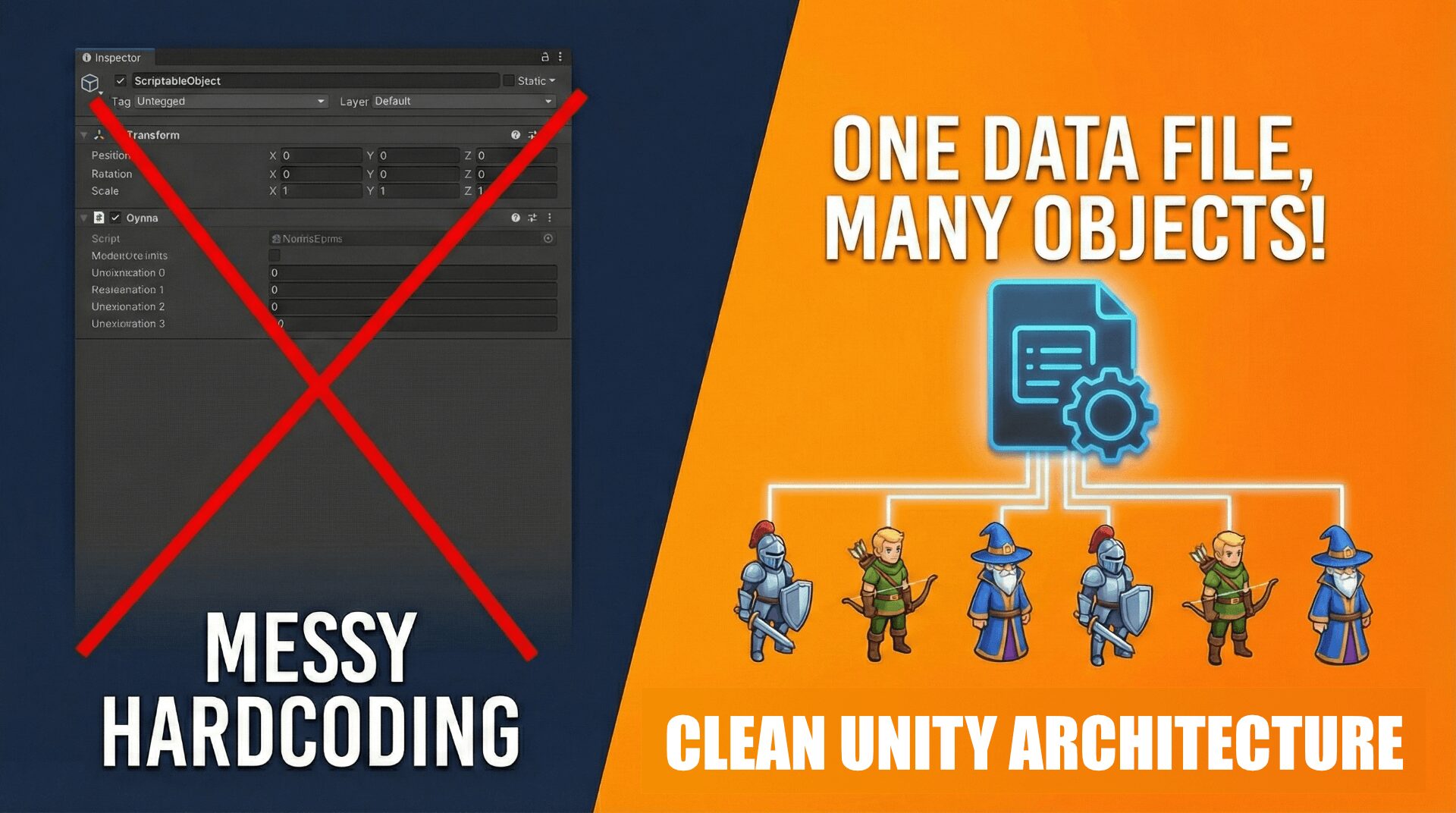
If you have been developing games in Unity for a while, you have likely run into the “Inspector Nightmare.” You have a script with 20 public variables, and you have to copy-paste their values across 50 different prefabs.
If you change the speed of your “Goblin” enemy, you have to find every Goblin prefab and update it manually.
There is a better way. Enter ScriptableObjects.
What is a ScriptableObject?
Think of a standard MonoBehaviour (your normal script) as a Machine. It does things. It moves characters, plays sounds, and calculates damage.
Think of a ScriptableObject as a Instruction Manual. It doesn’t “do” anything on its own. It just holds the data that tells the Machine what to do.
The Key Difference:
MonoBehaviours live on GameObjects in the Scene.
ScriptableObjects live in your Project folder as Assets (just like a Texture or an Audio file).
The “Why”: Memory Efficiency
This is the biggest reason to use them, straight from the official docs.
Imagine you have 1,000 Zombies in your game.
Without ScriptableObject: Each Zombie has a script with
public int health = 100. Unity creates 1,000 copies of that number in memory.With ScriptableObject: You create one file called “ZombieData” that holds
health = 100. All 1,000 Zombies just look at that one file.
You save memory, and more importantly, if you change the health to 150 in the file, all 1,000 zombies update instantly.
Practical Example: The Monster Wave Spawner
Let’s build a system that spawns enemies. Instead of hard-coding the spawn logic, we will use a ScriptableObject to define “Waves” (e.g., a Goblin Wave, a Dragon Wave).
Step 1: The Data Container (The ScriptableObject)
First, we create the blueprint. This script defines what data we want to save. Note the [CreateAssetMenu] attribute—this is what lets us create the file in Unity.
using UnityEngine;

// This adds a "Create Monster Wave" option to your right-click menu
[CreateAssetMenu(fileName = "NewMonsterWave", menuName = "Game/Monster Wave Data")]
public class MonsterWaveData : ScriptableObject
{
    [Header("Wave Configuration")]
    public string waveName;           // e.g., "Goblin Attack"
    public GameObject enemyPrefab;    // The enemy to spawn
    public int numberOfEnemies;       // How many?
    public Vector3[] spawnPoints;     // Where do they appear?
}
Step 2: Creating the Asset
Go to your Project Window.
Right-click > Create > Game > Monster Wave Data.
Name it
Wave1_Goblins.In the Inspector, drag in your Goblin Prefab, set the count to 5, and define some spawn coordinates.
You now have a data file representing Level 1!
Step 3: The Logic (The MonoBehaviour)
Now we need a script in the scene to read that data and actually spawn the monsters.
using UnityEngine;

public class WaveSpawner : MonoBehaviour
{
    // Drag your "Wave1_Goblins" asset into this slot in the Inspector!
    public MonsterWaveData currentWave;

    void Start()
    {
        SpawnWave();
    }

    void SpawnWave()
    {
        int spawnIndex = 0;

        for (int i = 0; i < currentWave.numberOfEnemies; i++)
        {
            // 1. Get the spawn position from our Data Asset
            Vector3 pos = currentWave.spawnPoints[spawnIndex];

            // 2. Spawn the enemy defined in the Data Asset
            GameObject newEnemy = Instantiate(currentWave.enemyPrefab, pos, Quaternion.identity);

            // 3. Name it neatly
            newEnemy.name = currentWave.waveName + "_" + (i + 1);

            // Cycle through spawn points so they don't all stack on top of each other
            spawnIndex = (spawnIndex + 1) % currentWave.spawnPoints.Length;
        }
    }
}
Why is this cool?
If you want to create “Level 2,” you don’t need to touch the code. You just:
Create a new Asset (
Wave2_Dragons).Drag it into the Spawner.
Done.
Pro Tip: Saving Data in Editor Tools
ScriptableObjects are great for storing game settings (like High Scores or Configs), but there is a catch.
If you write a script that modifies a ScriptableObject while you are in the Unity Editor (not playing), Unity might not “save” that change to the disk automatically.
If you are building custom tools, you must use SetDirty.
The Rule:
“Unity doesn’t automatically save changes to a ScriptableObject made via script in Edit mode. You must call
EditorUtility.SetDirty.”
Example:
if (GUILayout.Button("Update High Score"))
{
    gameSettings.highScore += 10;

    // TELL UNITY TO SAVE THIS!
    EditorUtility.SetDirty(gameSettings);
}
Without that line, you might change the High Score, close Unity, open it the next day, and find it reverted back to zero.
Conclusion
ScriptableObjects are one of the best tools for moving from “Junior Developer” to “Professional Developer.” They separate your Data from your Code, making your projects cleaner, faster, and easier to manage.
Start using them for your Item Lists, Enemy Stats, and Level Configs today!