Building a multiplayer game in Unity used to mean spending weeks just getting players connected before you even started coding gameplay. You had to build UI for lobbies, handle authentication, and manage connection states.
Enter the Multiplayer Sessions Building Block.
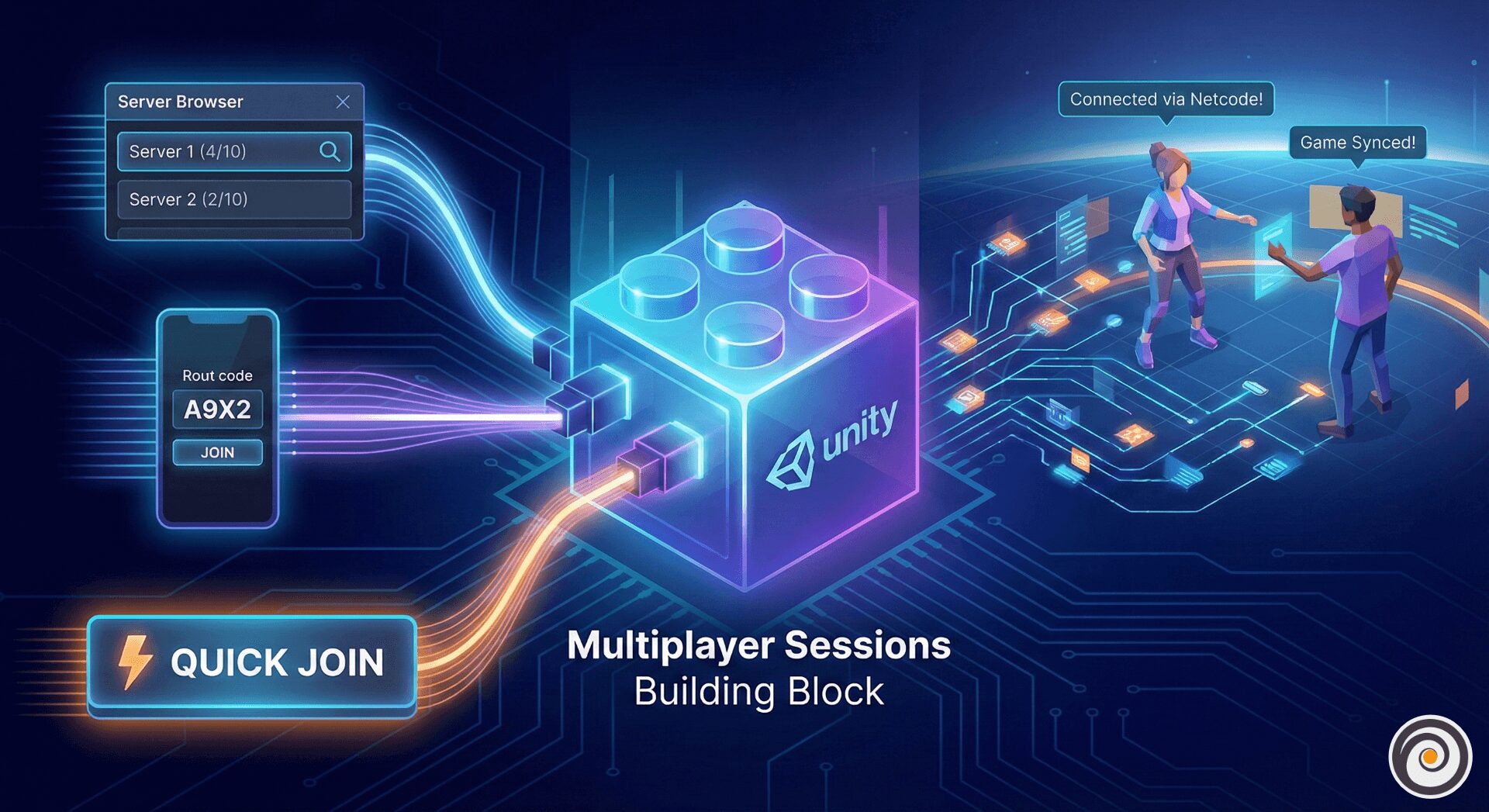
This essential asset from Unity provides pre-made UI elements and logic to handle the “boring” parts of multiplayer: creating sessions, browsing lobbies, and joining via codes. In this guide, I’ll show you how to use this Building Block to get a multiplayer demo up and running in minutes.
What is the Multiplayer Sessions Building Block?
Think of a “Session” as the waiting room or the connection layer of your game. It handles:
Host Election: Who is running the show?
Lifecycle: Players joining and leaving.
Connection: Handing the players off to the actual game server (Netcode).
Important: This Building Block handles the session (the lobby), not the gameplay synchronization (player movement, shooting). However, it is designed to plug directly into Netcode for GameObjects (NGO) or Netcode for Entities.
Prerequisites
Before we dive in, make sure you have:
Unity Editor installed.
The Multiplayer Session Building Block added to your assets.
Your Unity Project linked to a Unity Cloud Project (Project Settings > Services).
Step 1: Initial Setup
Once you have imported the package from the Package Manager/Asset Store:
Navigate to
Assets > Blocks > MultiplayerSession > Scenes.Open one of the example scenes (e.g., JoinByBrowsing).
Press Play.
If your project is linked to the cloud correctly, you should immediately see a functional UI where you can create a session!
Step 2: Choosing Your Flow
The asset comes with three distinct “flavors” of multiplayer connection. You should pick the one that fits your game design:
1. The Server Browser (JoinByBrowsing)
Best for: RPGs, FPS games, or communities where you want players to find new people.
Features: Includes a “Create Session” panel and a scrollable list of available sessions. Players can see the player count before joining.
2. The Join Code (JoinByCode)
Best for: Party games (like Among Us style) or private co-op with friends.
Features: The host creates a game and receives a unique code. Other players simply enter that code to join. No server list is required.
3. Quick Match (QuickJoin)
Best for: Competitive arcade games or battle royales.
Features: A simple “Play” button. The system uses the Quick Join API to dump the player into the first available open session.
Step 3: From Lobby to Gameplay (Adding Netcode)
The UI is great, but now you need to sync the actual game. The Building Block bridges the gap between the UI and Unity’s Netcode.
To enable actual gameplay synchronization:
Install Netcode for GameObjects (via Package Manager).
Locate the
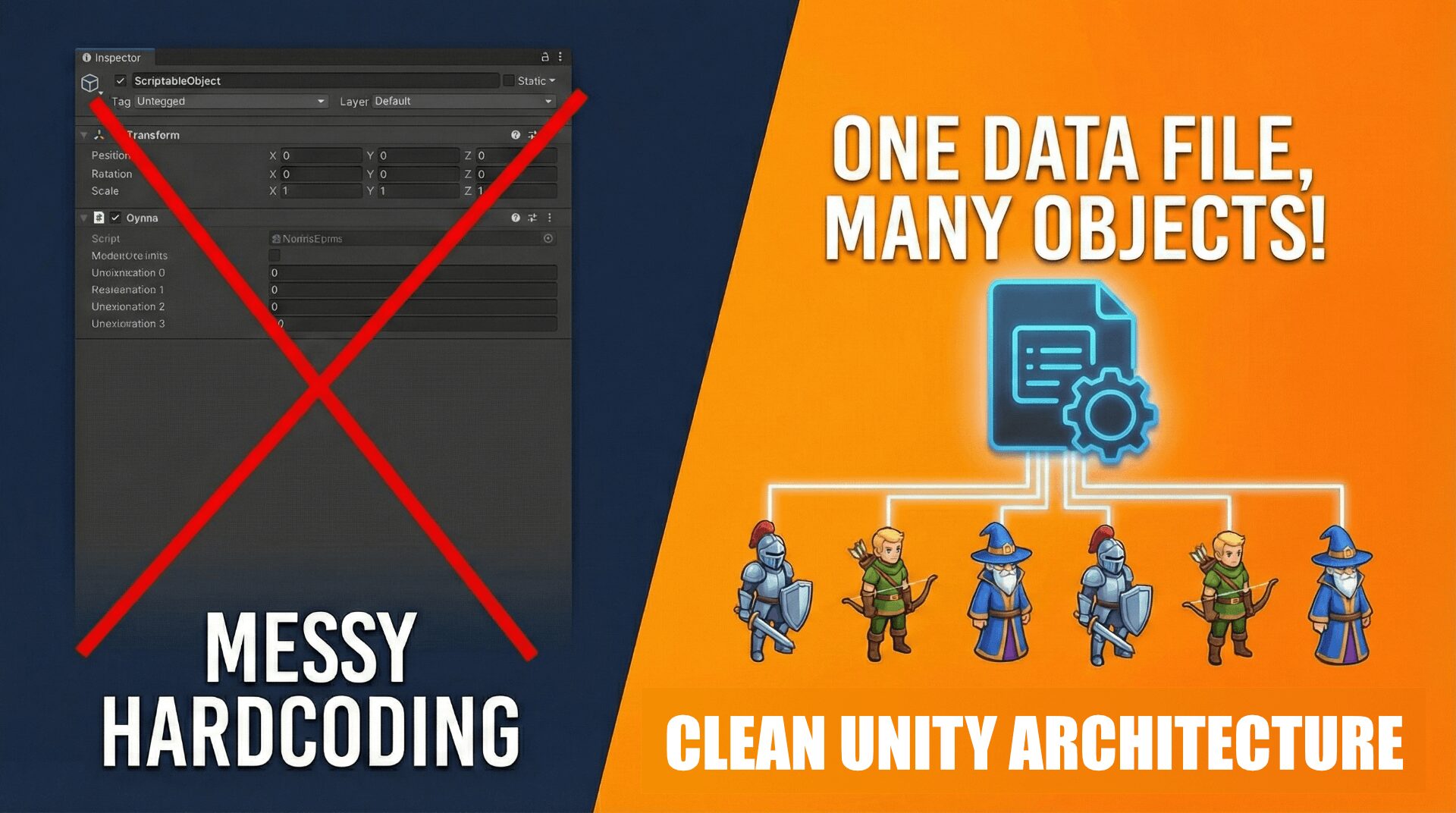
SessionSettingsScriptableObject in theMultiplayerSessionfolder.Check the box for Create Network Session.
Set the Network Type.
Recommended: Choose Relay for the easiest setup (works over the internet without port forwarding).
Alternative: Choose Direct for LAN parties (requires IP addresses).
Now, when a session starts, the Building Block will automatically initialize Netcode for you!
How to Test Locally
You don’t need two computers to test this.
Install the Multiplayer Play Mode package from Unity.
Set the Number of Players to 2 in the Unity Editor toolbar.
Press Play.
Unity will open two game windows. You can Host on one and Join on the other to verify your session logic works.
Troubleshooting Common Issues
Authentication Failure: Ensure you are signed into the Unity Editor and your Project ID is set in Project Settings.
Output Not Available: If you see this regarding files, ensure you’ve fetched the file content correctly.
Can’t Join Sessions: Check your firewall rules and ensure the “Lobby” service is enabled in your Unity Cloud dashboard.
UI Not Updating: If you customized the UI, check that your
VisualElementin the UXML has the correctSessionTypeassigned.
Conclusion
The Multiplayer Sessions Building Block is a massive time-saver. Instead of debugging UI buttons and lobby logic, you can drop this asset in and focus on what matters: making your game fun.
Ready to build? Download the block from the Asset Store and start your session!