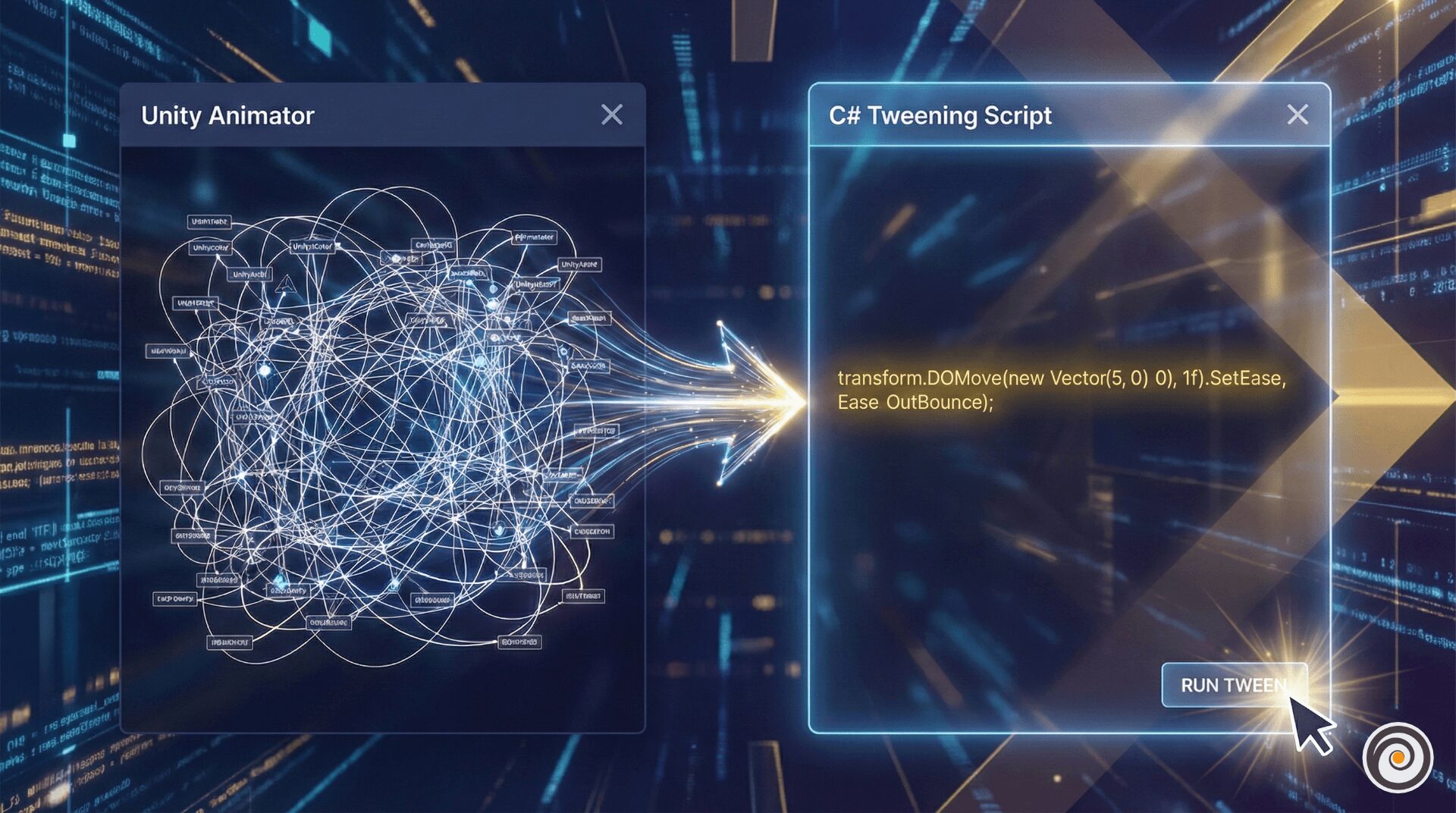
If you are a Unity developer, you know this pain:
You are making a game. You write code to rotate a character or a camera. It works fine for a few seconds… and then suddenly, the object flips, shakes, or gets stuck looking in the wrong direction.
You check the Inspector. The X, Y, Z values look crazy. You check your code, and it looks correct.
So, why is this happening?
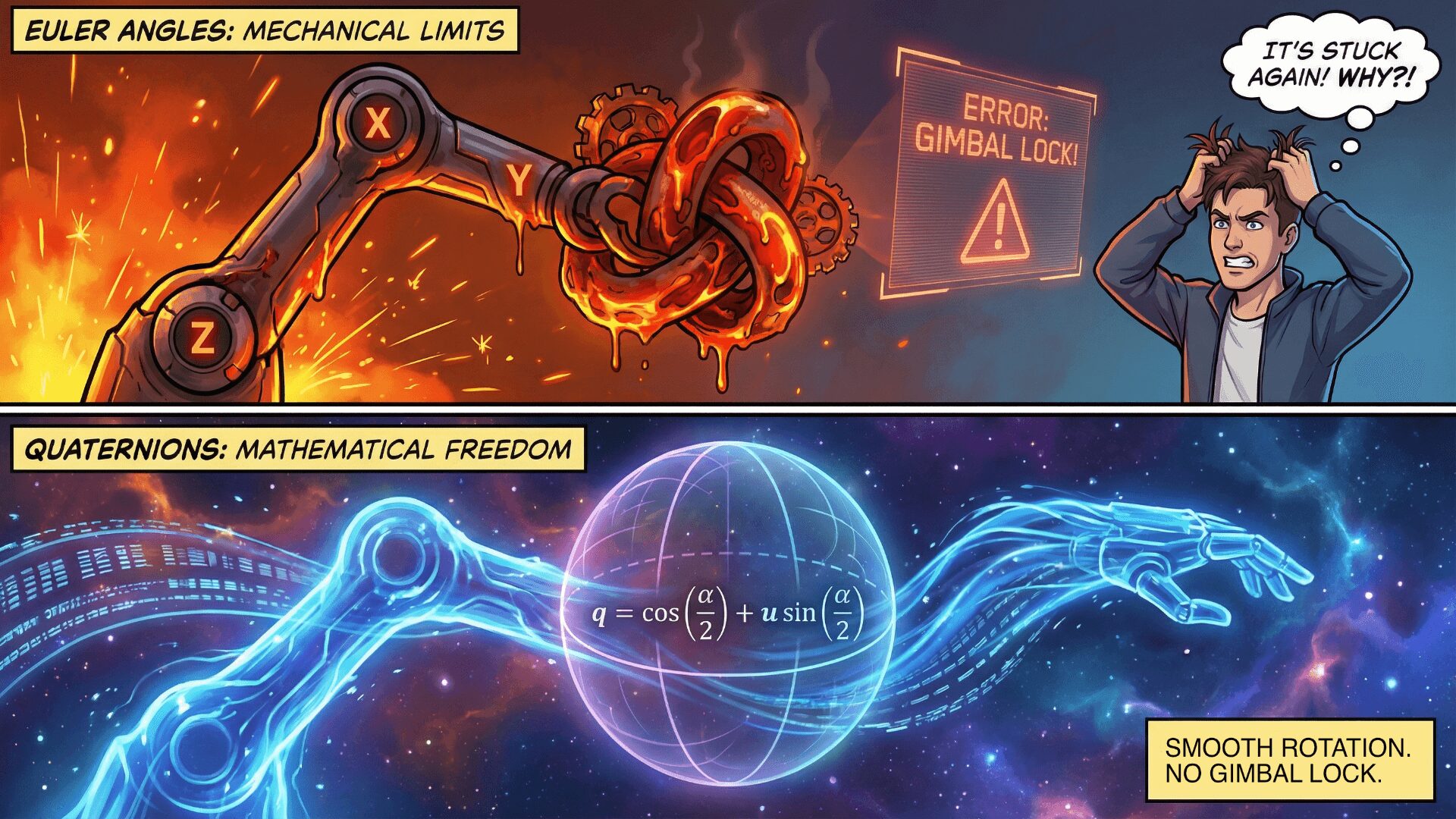
This is not a bug. This is a mathematical problem called Gimbal Lock. To fix it, we need to understand the war between Euler Angles and Quaternions.
The Two Ways to Rotate
Unity has two languages for rotation. One is for humans, and one is for the computer.
1. Euler Angles (For Humans)
This is what you see in the Inspector: (0, 90, 0).
Good: It is easy to read. We know what “90 degrees Y” means.
Bad: It has a major flaw. If two axes align, the math breaks (Gimbal Lock).
2. Quaternions (For Computers)
This is what Unity uses inside the engine: (x, y, z, w).
Good: It is perfect. It never gets stuck. It calculates rotation smoothly.
Bad: It is very hard for humans to understand.
The Golden Rule: We should read Euler angles, but we should always code using Quaternions.
What is Gimbal Lock?
To understand why your object flips out, imagine a mechanical gyroscope with three rings.
Red Ring: X-Axis (Pitch)
Green Ring: Y-Axis (Yaw)
Blue Ring: Z-Axis (Roll)
Normally, these rings move independently. But sometimes, you rotate one ring so much that it lines up perfectly with another ring.
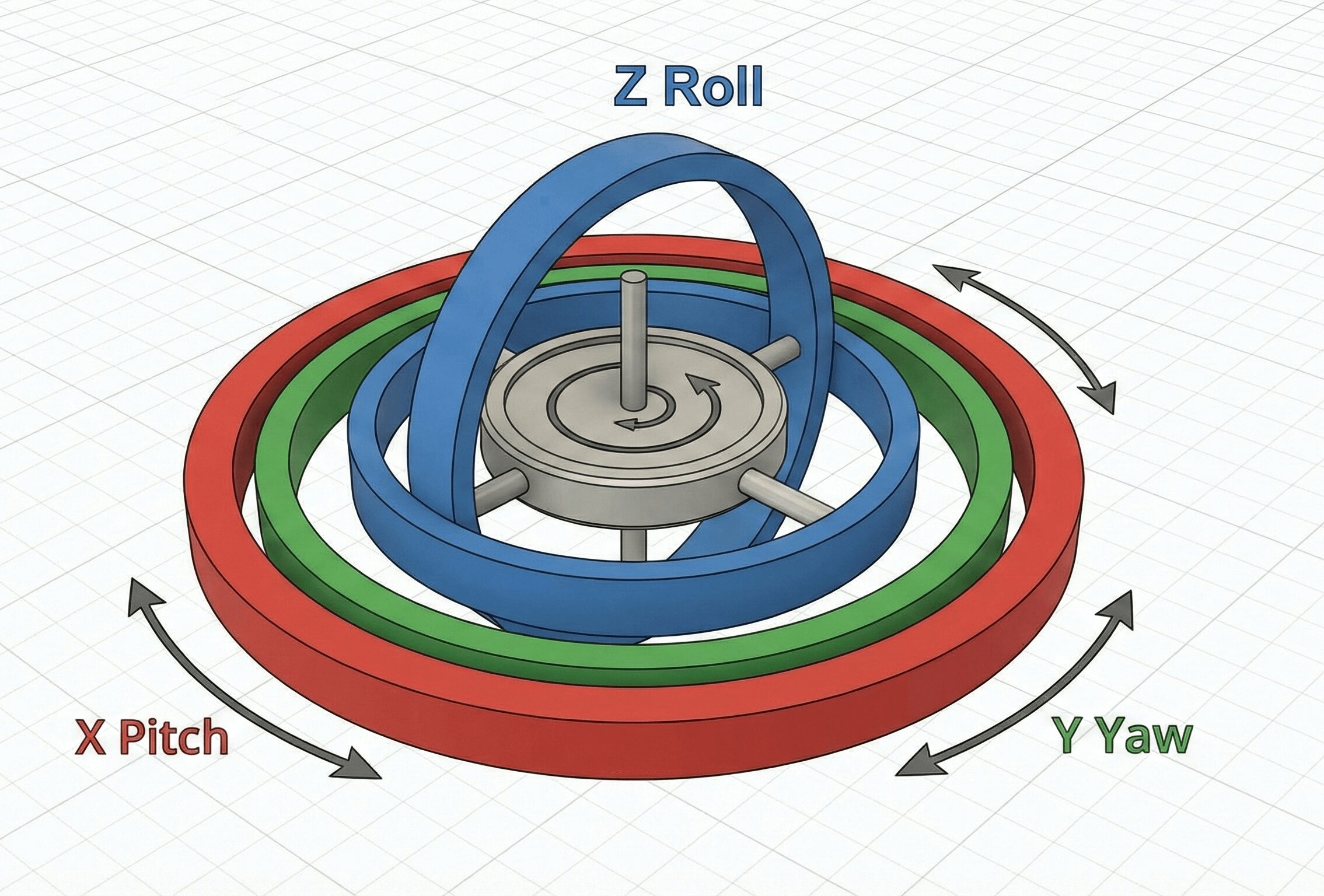
When the rings align, you lose one direction of movement. This is Gimbal Lock.
When the rings align, the computer gets confused. It can no longer tell the difference between “Left” and “Roll.” Because it is confused, it tries to flip the object rapidly to find the correct path. This causes the jittering you see in your game.
The Reality Check: Inspector vs. Code
This is where beginners get tricked.
When you look at the Inspector, Unity shows you nice, simple degrees. But in the background, Unity is secretly converting everything to complex Quaternions.
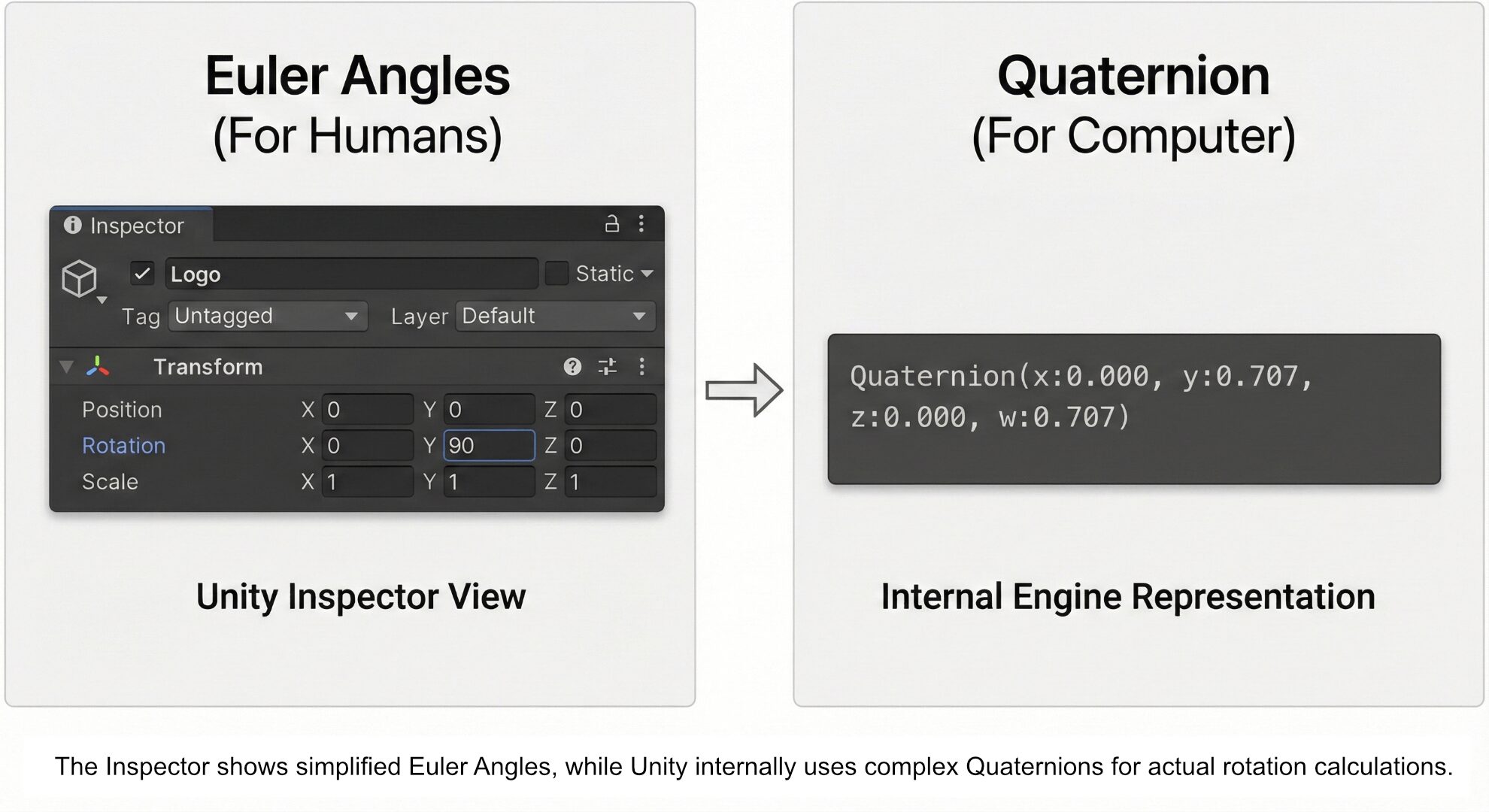
If you try to force the Inspector values (Euler) via code every single frame, you are fighting against Unity’s internal math.
How To Fix It (The Code Solution)
Stop setting transform.eulerAngles manually in your Update() loop. Instead, use Unity’s helper functions.
 The Wrong Way (Don’t do this)
C#
void Update() {
    // This creates Gimbal Lock issues!
    Vector3 currentRot = transform.eulerAngles;
    currentRot.y += 10 * Time.deltaTime;
    transform.eulerAngles = currentRot;
}
⚠️ Senior Dev Warning: The “Spinning” Bug You might think: “Can I just use Vector3.Lerp to smooth out my Euler angles?”
No! This causes a different problem. Vector3 math does not know that a circle connects 360° back to 0°.
Example: If you are at 350° and want to go to 10°, Vector3.Lerp thinks it needs to rotate backwards 340 degrees to get there. Your object will spin wildly the “long way” around.
Solution: Always use Quaternion.Slerp (shown below). It is smart enough to take the shortest path (just 20 degrees).
 The Right Way (Do this)
1. Simple Rotation: Use transform.Rotate. It handles the Quaternions for you internally.
C#
void Update() {
    // Safe and smooth
    transform.Rotate(0, 10 * Time.deltaTime, 0);
}
2. Setting a Specific Angle: If you need to set rotation to exactly 90 degrees, use Quaternion.Euler.
C#
void Start() {
    // You give it degrees (0, 90, 0)
    // It converts to a safe Quaternion automatically
    transform.rotation = Quaternion.Euler(0, 90, 0);
}
3. Smooth Looking: If you want an enemy to look at the player smoothly, use Quaternion.Slerp.
C#
void Update() {
    Vector3 direction = player.position - transform.position;
    Quaternion targetRotation = Quaternion.LookRotation(direction);

    // Smoothly rotate towards the player
    transform.rotation = Quaternion.Slerp(transform.rotation, targetRotation, Time.deltaTime * 5f);
}
Conclusion
Don’t let the math scare you. You don’t need to understand how to calculate x, y, z, w. You just need to remember one rule:
“Show me Euler in the Inspector, but give me Quaternions in the code.”
Use Quaternion.Euler, Quaternion.LookRotation, and transform.Rotate, and your Gimbal Lock problems will disappear!