Unity Game Loop Masterclass: Update() vs. FixedUpdate() vs. LateUpdate()
If you have ever spent hours debugging why your player character stutters when moving, or why your physics objects seem to jitter uncontrollably against walls, you have likely fallen victim to the Unity Game Loop trap.
As Unity developers, we live and die by the “Update” cycle. But knowing where to put your code is just as important as the code itself.
In this post, we are breaking down the “holy trinity” of Unity scripting life cycles: Update(), FixedUpdate(), and LateUpdate(). Let’s clear up the confusion and get your gameplay running silky smooth.
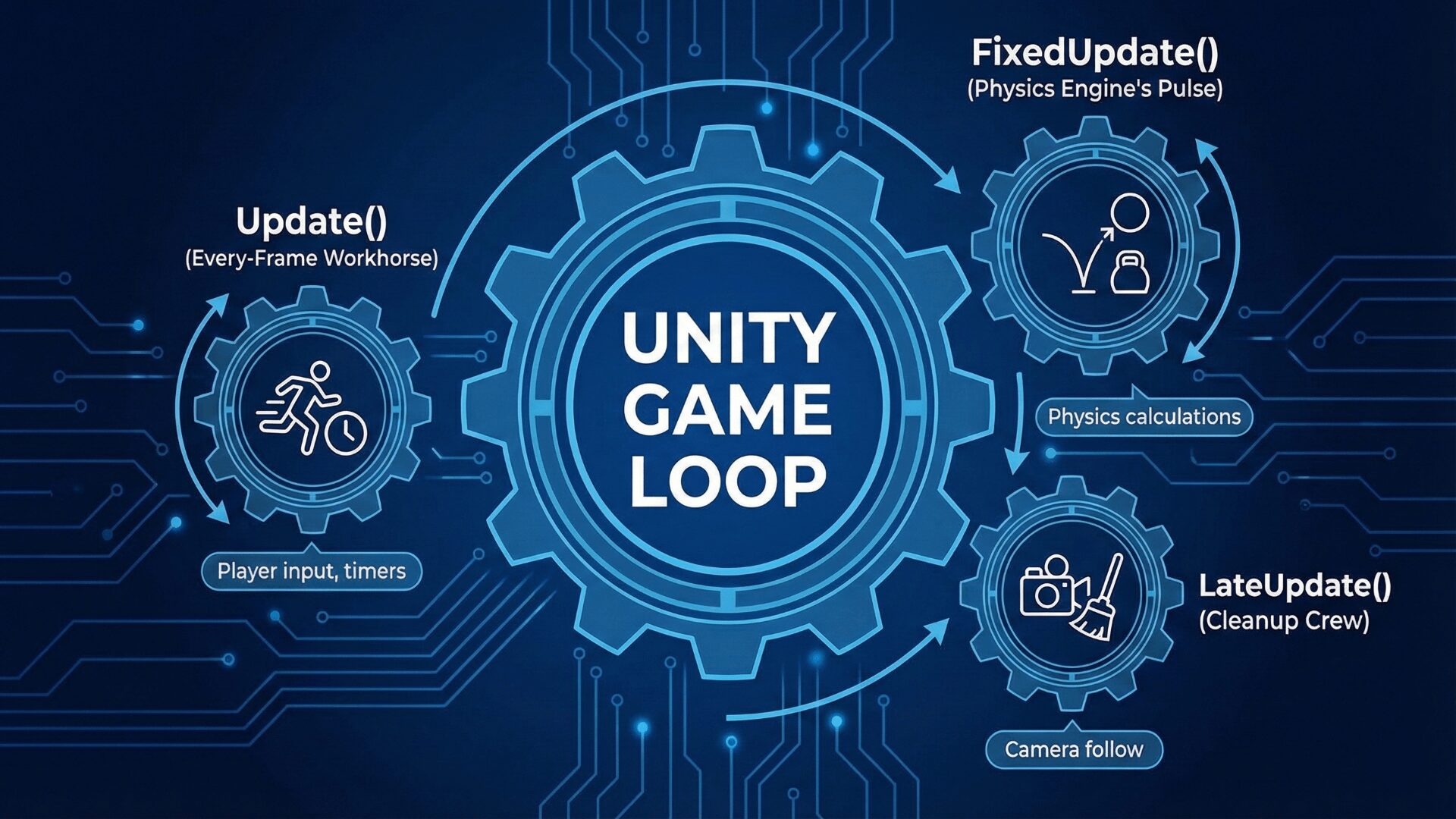
1. Update(): The Every-Frame Workhorse
Update() is the most common entry point for your logic. If you create a new script, Unity includes it by default for a reason.
When it runs: It is called exactly once per frame.
The Catch: The frequency of Update() is variable because frame rates fluctuate.
If your game is running at a smooth 60 FPS,
Update()is called 60 times a second.If a massive explosion effect drops your frame rate to 20 FPS,
Update()is only called 20 times a second.
Best Used For:
Input detection: Checking if a player pressed a button (e.g.,
Input.GetKeyDown). You must check this every frame so you don’t miss a quick tap.Non-physics movement: Moving UI elements, simple oscillating objects, or character controllers that don’t rely on the physics engine.
Simple Timers: Counting down seconds for cooldowns.
The Golden Rule: The Time.deltaTime Multiplier
Because the time between frames changes constantly, if you move an object inside Update(), you must multiply your movement vector by Time.deltaTime.
Time.deltaTime is the time in seconds it took to complete the last frame. This ensures that your object moves at the same speed in meters per second, regardless of whether the computer is fast (high FPS) or slow (low FPS).
C#
void Update() {
    // 1. Check for Input every single frame so we don't miss it
    if (Input.GetKeyDown(KeyCode.Space)) {
        Jump();
    }

    // 2. Move forward smoothly, independent of frame rate
    // Without Time.deltaTime, faster computers would move the object faster.
    transform.Translate(Vector3.forward * moveSpeed * Time.deltaTime);
}
2. FixedUpdate(): The Physics Engine’s Pulse
FixedUpdate() is special. It does not run based on your visual frame rate. It runs on a fixed, reliable timer geared specifically for the physics engine (PhysX).
When it runs: By default, it runs every 0.02 seconds (50 times per second). You can change this in your project settings, but the default is usually fine.
The Catch: Because it runs independently of the graphics frame rate, it might run zero times a frame (if your game is running super fast), or multiple times a single frame (if your game is lagging, it needs to “catch up” on physics calculations).
Best Used For:
Rigidbody Manipulation: Adding forces, adding torque, or directly setting velocity on a Rigidbody component.
To keep physics simulations stable and deterministic (meaning boxes stack without jittering and collisions happen predictably), you must apply physics changes in sync with the physics engine’s heartbeat.
The Golden Rule: NO Inputs Here
Do not check for unreliable input (like Input.GetKeyDown) inside FixedUpdate. Because it doesn’t run every rendered frame, it is very easy for a player to quickly tap a button between two FixedUpdate calls, causing the game to totally miss the input.
The standard pattern is to gather input in Update, store it in a boolean, and act on it in FixedUpdate.
C#
private bool jumpPressed = false;

// 1. Capture Input in Update (don't miss the button press)
void Update() {
    if (Input.GetButtonDown("Jump")) {
        jumpPressed = true;
    }
}

// 2. Apply Physics in FixedUpdate (keep the physics engine stable)
void FixedUpdate() {
    if (jumpPressed) {
        // rb is a reference to a Rigidbody component
        rb.AddForce(Vector3.up * jumpForce, ForceMode.Impulse);
        // Reset the flag immediately
        jumpPressed = false;
    }
}
3. LateUpdate(): The Cleanup Crew
LateUpdate() runs once per frame, exactly like Update().
The Catch: It guarantees that it will not run until all Update() calls from every single active script in your scene have finished executing. It is the “afterparty” of the frame.
Best Used For:
Camera Follow Scripts: This is the #1 use case. If your player moves inside
Update(), you want your camera to move to the player’s new position. If the camera tries to move before the player has finished moving for the frame, you will see a visual stutter or jitter.LateUpdatesolves this.Procedural Animation: Adjusting a character’s head to look at a target after the animation system has already moved the body for that frame.
The Example: Smooth Camera Follow
C#
public Transform playerTarget;
public Vector3 offset;

void LateUpdate() {
    // By the time we get here, we know for a fact the player
    // has finished their movement calculations in Update().

    // The camera snaps to the final, correct position for this frame.
    transform.position = playerTarget.position + offset;
}
Summary Cheat Sheet
If you only remember one table from this post, make it this one:
| Function | Frequency | Dependency | Best For |
| Update() | Variable | Visual Frame Rate | Player Inputs, Timers, Simple non-physics movement. |
| FixedUpdate() | Constant (Fixed) | Physics Time Settings | Rigidbody Physics (AddForce, velocity). |
| LateUpdate() | Variable | Visual Frame Rate | Cameras, Following scripts, ordering dependent actions. |
Conclusion
Mastering these three functions is the first major step toward professional-feeling gameplay in Unity.
Keep it simple: Inputs go in Update, Physics goes in FixedUpdate, and Cameras go in LateUpdate. Happy coding!