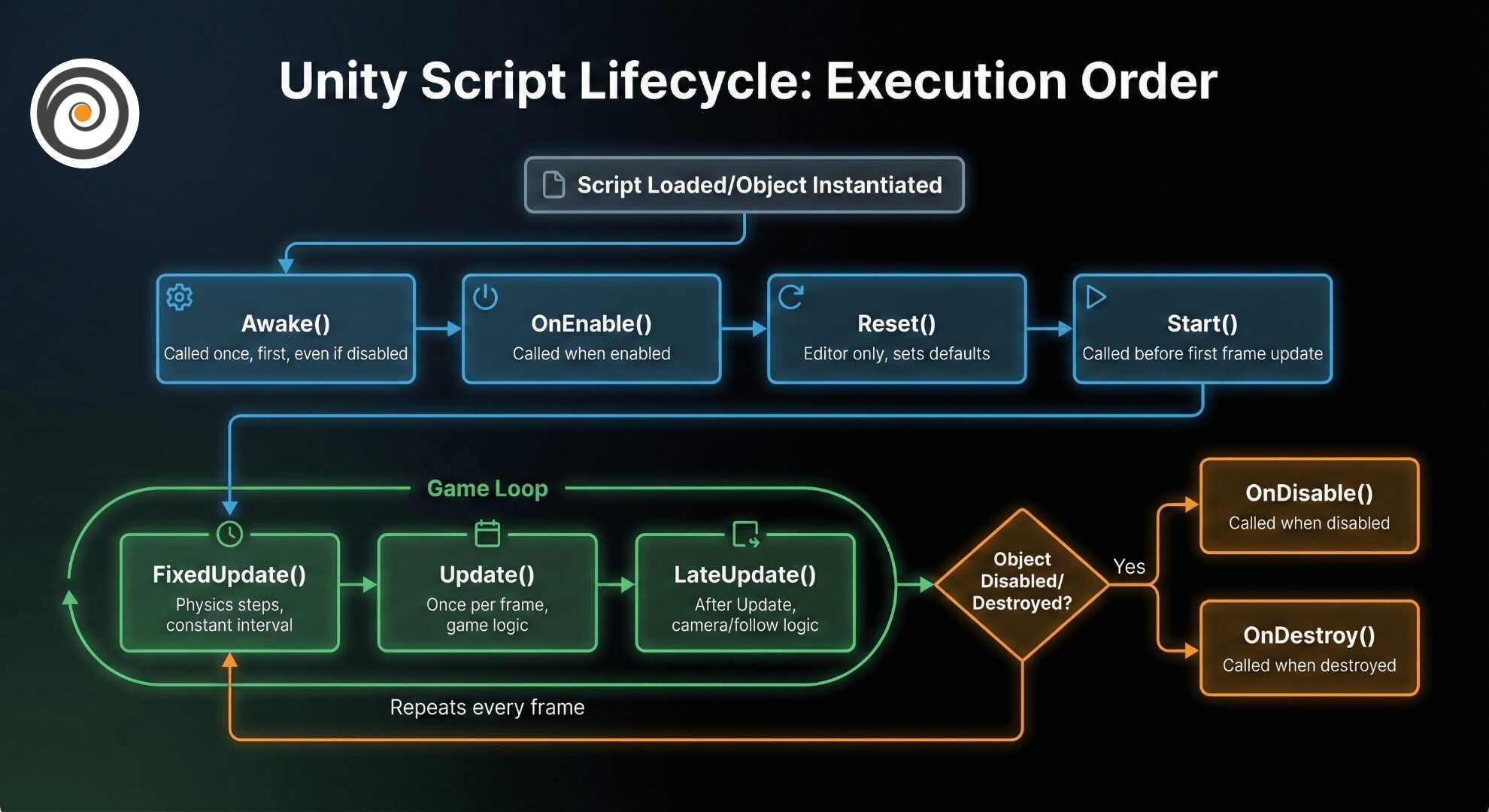
When you first start writing C# scripts in Unity, it’s tempting to dump everything into the standard Update() function and hope for the best. But as your game gets more complex, you’ll notice weird bugs. Variables aren’t ready when you need them, physics objects jitter, or cameras lag behind the player.
The solution to these problems usually lies in understanding the Unity Script Lifecycle.
Think of Unity as a movie director. You (the programmer) write the script for the actors (the GameObjects), but the director decides when the actors speak their lines. You can’t just shout your lines whenever you want; you have to wait for your cue.
Here is your guide to mastering those cues.
Part 1: The Core Pillars (The Basics)
Before we look at the complex charts, we need to understand the four most important events. These manage how your object wakes up and how it updates.
1. Initialization: Awake() vs. Start()
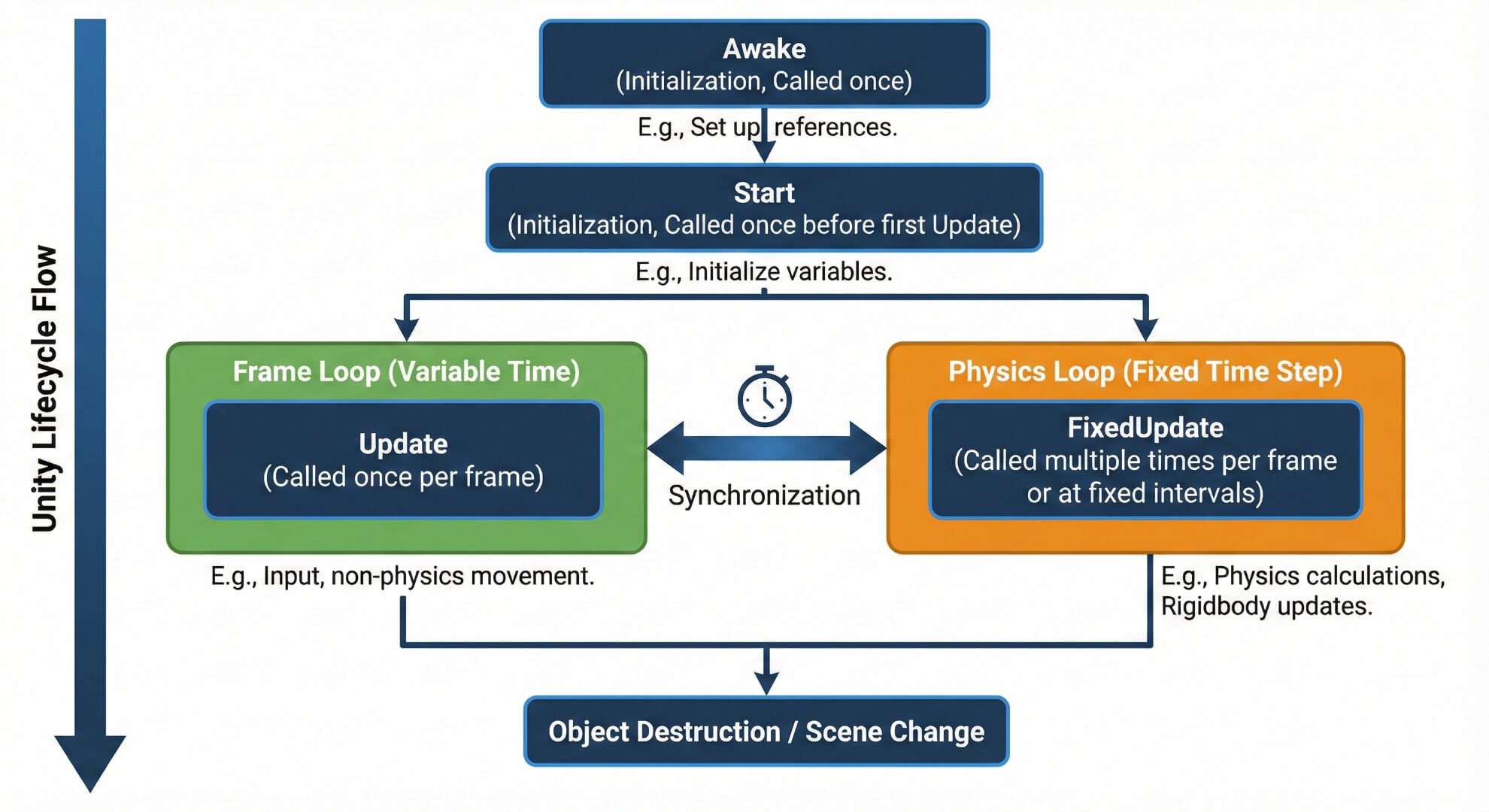
This is the most common interview question for Unity developers. Both happen when the game begins, but they have a distinct difference.
Awake() is the “Hardware Check”: It runs immediately when the object is initialized, even if the script component is disabled.
Best Use: Set up references to yourself (e.g.,
GetComponent<Rigidbody>).
Start() is the “Software Check”: It runs just before the first frame, but only if the script is enabled. It is guaranteed to run after all objects have finished their
Awake()phase.Best Use: Set up references to others (e.g.,
GameObject.Find("Player")).
The Golden Rule: Use
Awaketo tie your own shoes. UseStartto shake hands with others.
2. The Loops: Update() vs. FixedUpdate()
Once the game is running, Unity enters a loop.
Update() is for Graphics: It runs once per frame. If your computer is fast, this might run 144 times a second. If it’s slow, it might run 30 times.
Best Use: Input detection (keyboard presses), timers, and moving non-physics objects.
FixedUpdate() is for Physics: It runs on a fixed timer (usually 50 times/second). It does not care about your frame rate.
Best Use: Adding forces to Rigidbodies, collision checks.
Part 2: The Deep Dive (Decoding the Map)
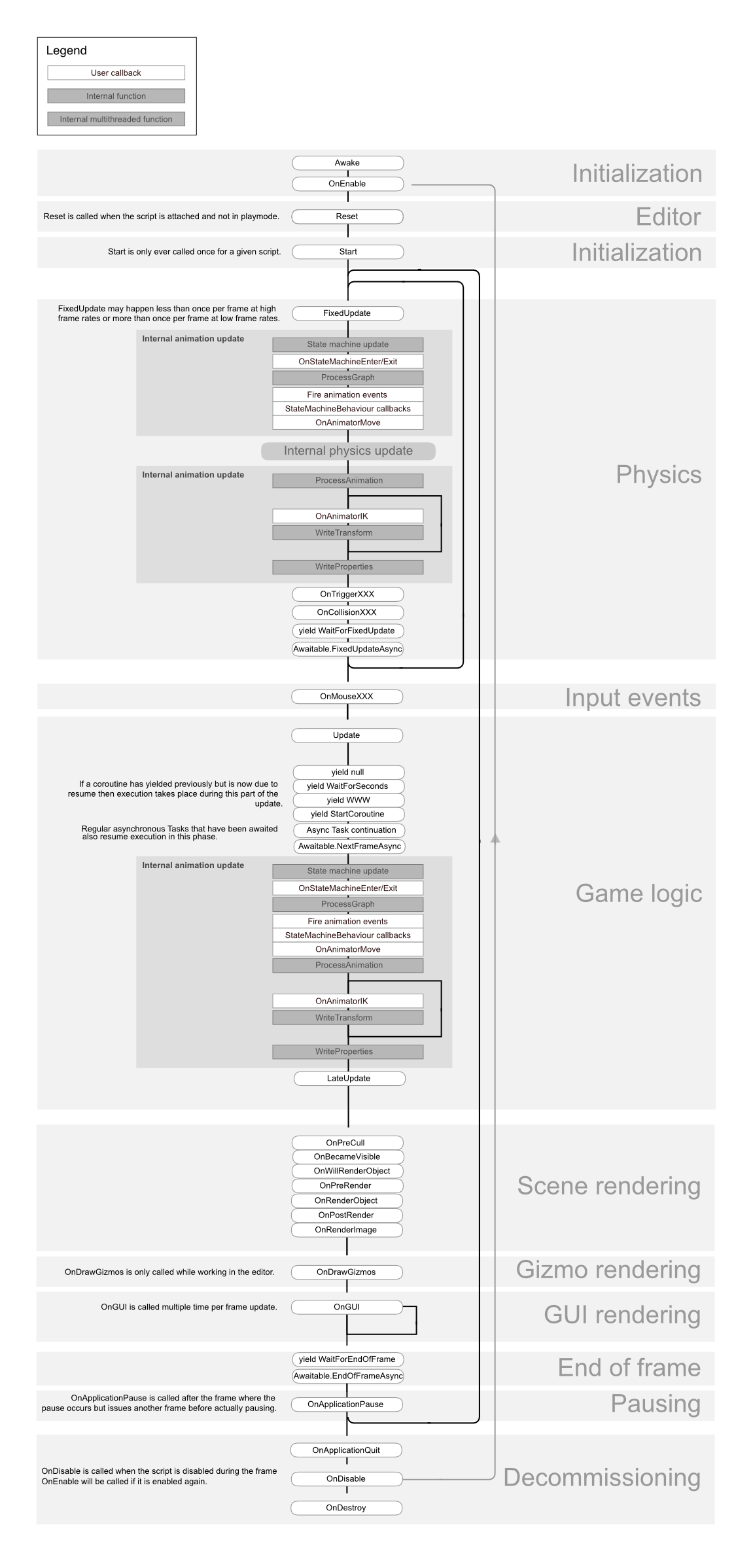
Once you understand the basics, you will eventually encounter the official Unity Execution Order diagram. It looks intimidating, but let’s break it down into simple zones.
Zone 1: The Setup (Top Section)
Look at the hierarchy at the top: Awake → OnEnable → Start. Notice Reset? That only runs in the Editor when you first attach a script. It’s a tool for you, not the player.
Zone 2: The Physics Loop (The Gray Box)
The diagram shows a loop around FixedUpdate.
This is why we say Physics runs on its own “heartbeat.”
Notice that
OnCollisionEnterandOnTriggerEnterhappen inside this physics loop. This is why collision detection is tied to the physics engine, not the graphics rendering.
Zone 3: The Logic Loop (The Middle)
This is where your game lives.
Input First: Notice
OnMouseXXXhappens beforeUpdate. This ensures your click is registered right before the logic runs.The Late Arrival: LateUpdate sits at the very bottom. This is the perfect place for a Camera Script. Why? It guarantees the Player has finished moving in
Updatebefore the Camera moves to track them, preventing jitter.
Part 3: Pro Tip – The Forgotten “Reset” Function
Most beginners ignore the Reset() function, but it can save you hours of work.
Reset() is called automatically when you attach a script to an object in the Editor. You can use it to auto-fill references so you don’t have to drag-and-drop them manually.
C#
private void Reset()
{
    // Automatically find the Rigidbody when you add this script!
    Rigidbody rb = GetComponent<Rigidbody>();

    // If it doesn't exist, create one!
    if (rb == null)
       rb = gameObject.AddComponent<Rigidbody>();

    rb.useGravity = false; // Set default settings
}
Part 4: 5 Deadly Sins (Common Mistakes)
To wrap up, here are the five most common ways beginners break the lifecycle.
The Ghost Input: Checking
Input.GetKeyDowninsideFixedUpdate.Why it’s bad: Since
FixedUpdatedoesn’t run every frame, it might “miss” your button click. Always check input inUpdate.
The Jittery Box: Moving a Rigidbody inside
Update.Why it’s bad: You are fighting the physics engine. The screen will stutter. Move physics objects in
FixedUpdate.
The Race Condition: Talking to another script in
Awake.Why it’s bad: That other script might not be awake yet. Wait for
Start.
The Zombie Listener: Subscribing to events in
OnEnablebut forgetting to unsubscribe inOnDisable.Why it’s bad: This causes memory leaks and errors where code runs multiple times unexpectedly.
The Infinite Spawn: Instantiating objects in
Updatewithout a timer.Why it’s bad: You will spawn 60 objects per second and crash your computer.
Conclusion
The Unity Lifecycle isn’t just a boring flowchart; it’s the traffic rules of your game. If you follow the rules—Input in Update, Physics in FixedUpdate, Setup in Start—your traffic flows smoothly.
Keep the diagram handy, and happy coding!