Are you struggling with 3D models that appear upside down or rotate in the wrong direction when moving between software? You’ve likely encountered the “Handedness Wall.” Understanding 3D coordinate systems is a fundamental skill for any developer or artist working in Unity, Unreal Engine, or Blender.
In the world of 3D development, there is no universal law for which way is “Up” or which direction is “Positive” for rotation. These differences between Left-Handed and Right-Handed coordinate systems can lead to major headaches during the asset pipeline.
In this ultimate guide, we will dive deep into the math and logic behind these systems. We’ll cover the “Thumb Rule” for positive rotation, compare industry-standard software like Maya and 3ds Max, and provide you with the “Z-flip” pro-tip to reconcile coordinate differences instantly. Master the compass of 3D space and never lose your orientation again.
1. The Core Difference: Left-Handed vs. Right-Handed
While all 2D coordinate systems can be rotated to match each other, 3D systems are fundamentally different. In 3D space, there are exactly two distinct types of coordinate spaces: left-handed and right-handed. If two spaces have opposite handedness, they can never be rotated to perfectly align; one axis will always point the wrong way.
How to Identify Handedness
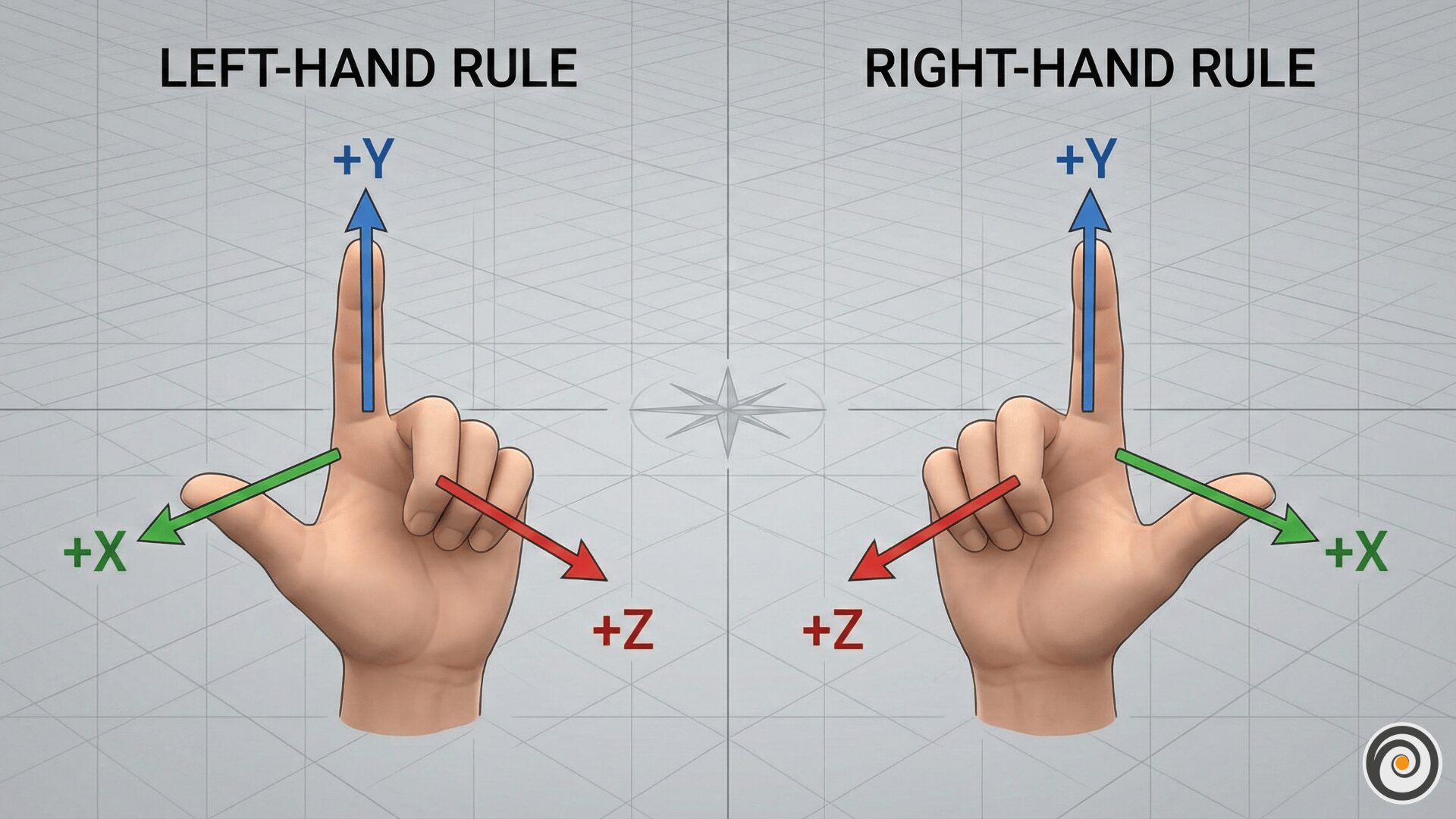
The most intuitive way to identify your system is to use your hands as a physical compass.
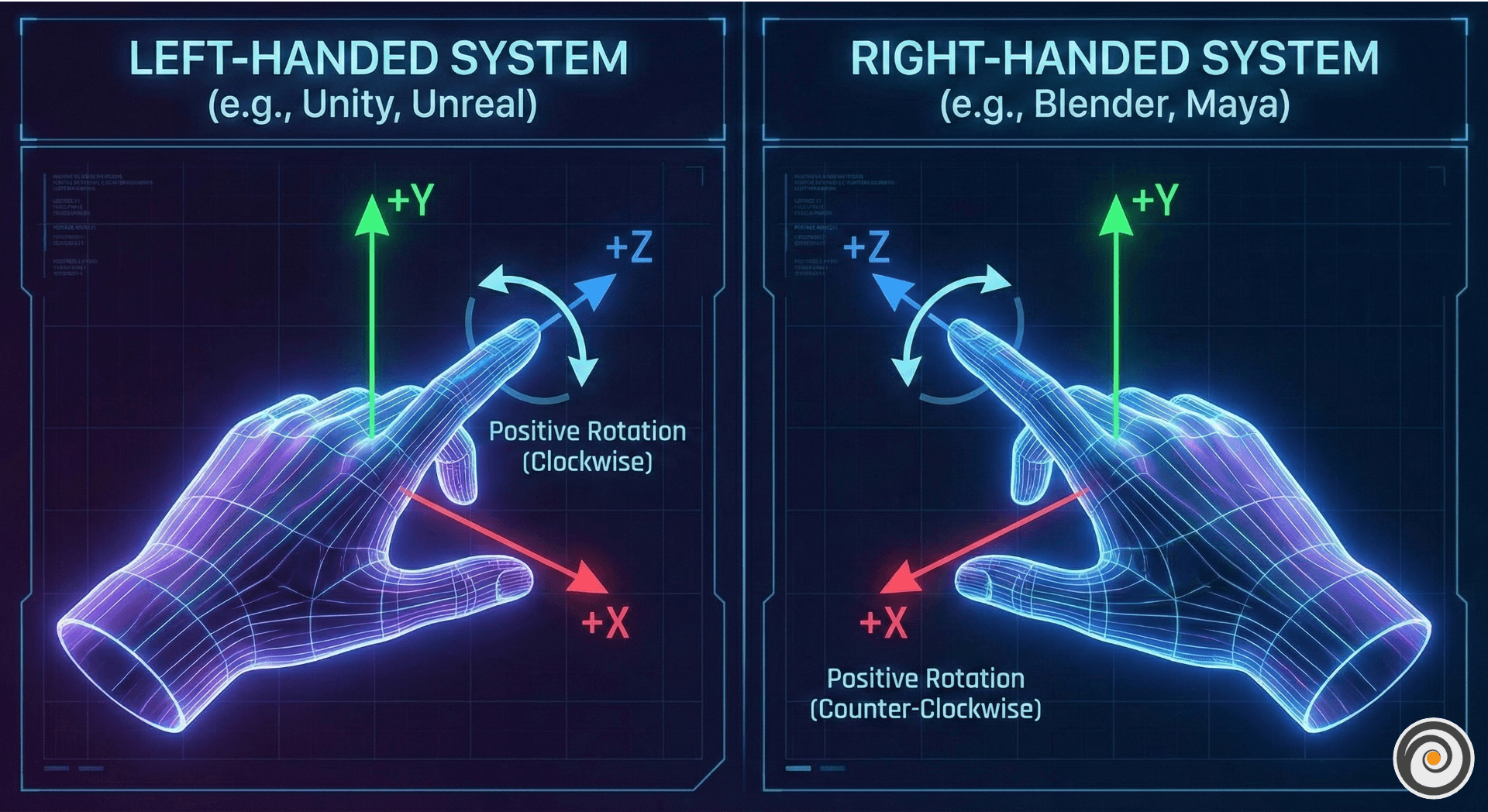
The Left-Handed System: Make an “L” with your left hand. Your thumb points right (+X), your index finger points up (+Y), and your third finger points forward, away from you (+Z).
The Right-Handed System: Do the same with your right hand. Your thumb still points right (+X) and your index finger points up (+Y), but your third finger now points toward you (+Z).
2. The Rules of Positive Rotation
Handedness doesn’t just dictate where objects sit; it defines how they spin. To know which way an object will turn when given a positive angle, you use the “Thumb Rule”.
The Thumb Rule for Rotation
Identify the Axis: Determine which axis you are rotating around (X, Y, or Z).
Point Your Thumb: Point the thumb of the hand corresponding to your software (left or right) toward the positive end of that axis.
Curl Your Fingers: The direction your fingers curl represents Positive Rotation.
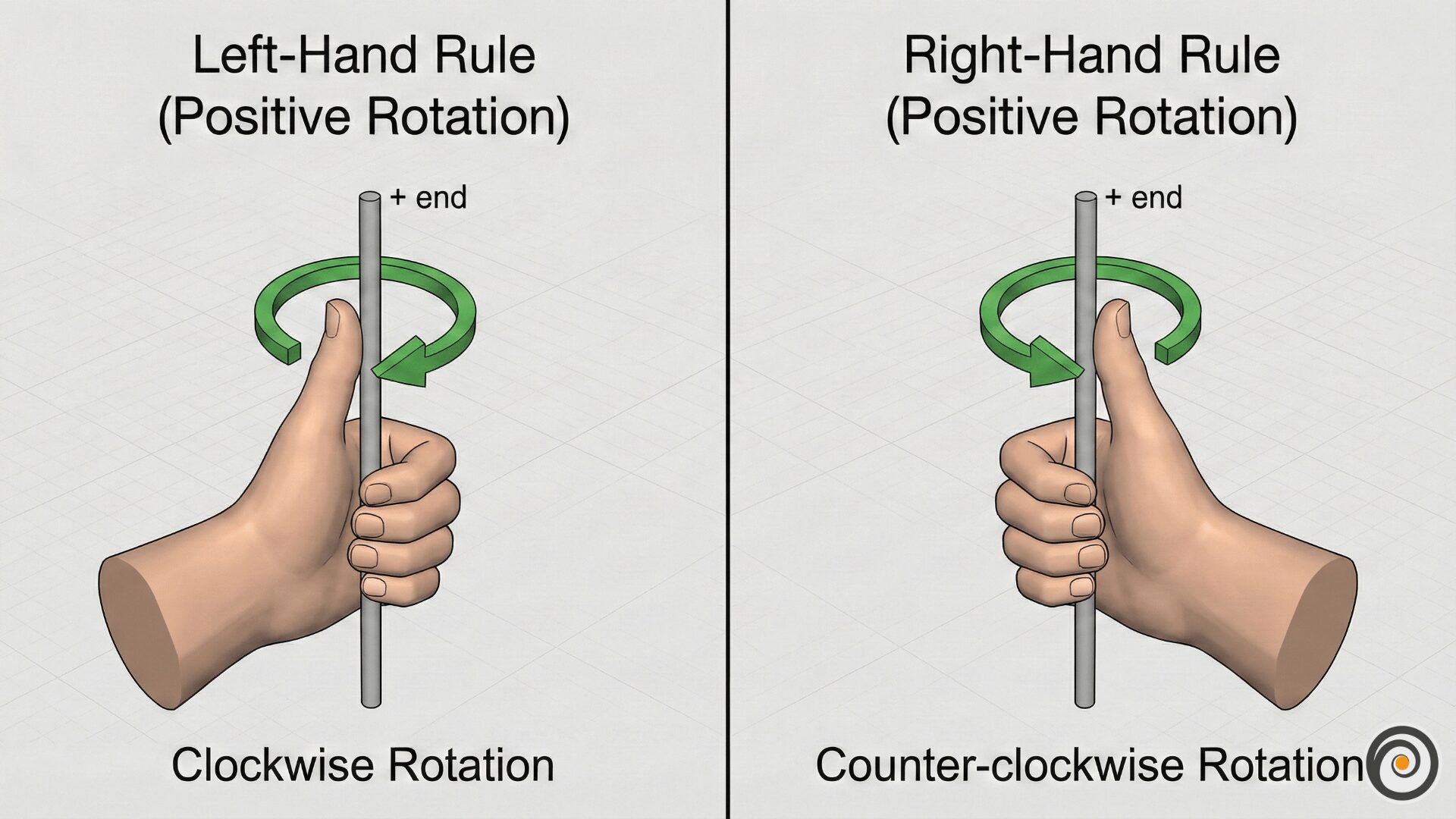
In a Left-Handed System: Positive rotation is clockwise when viewed from the positive end of the axis.
In a Right-Handed System: Positive rotation is counter-clockwise when viewed from the positive end.
3. Software Standards: Who Uses What?
Because different industries have different backgrounds, the “standard” depends entirely on your software choice.
4. Developer Pro-Tip: Fixing the “Z-Flip”
When you move data between these systems—for example, bringing a model from Blender (Right) into Unity (Left)—you will often find the model facing the opposite direction.
The Fix: The simplest way to toggle handedness is to flip the sign on the z-coordinate. If your model looks wrong, change the positive Z values to negative, and the space will reconcile.
Conclusion
Neither system is “better” than the other; they are simply different mathematical languages. By mastering the physical “Hand Rules” for both location and rotation, you can navigate any 3D environment with total confidence.