Hello friends! Welcome back to the blog.
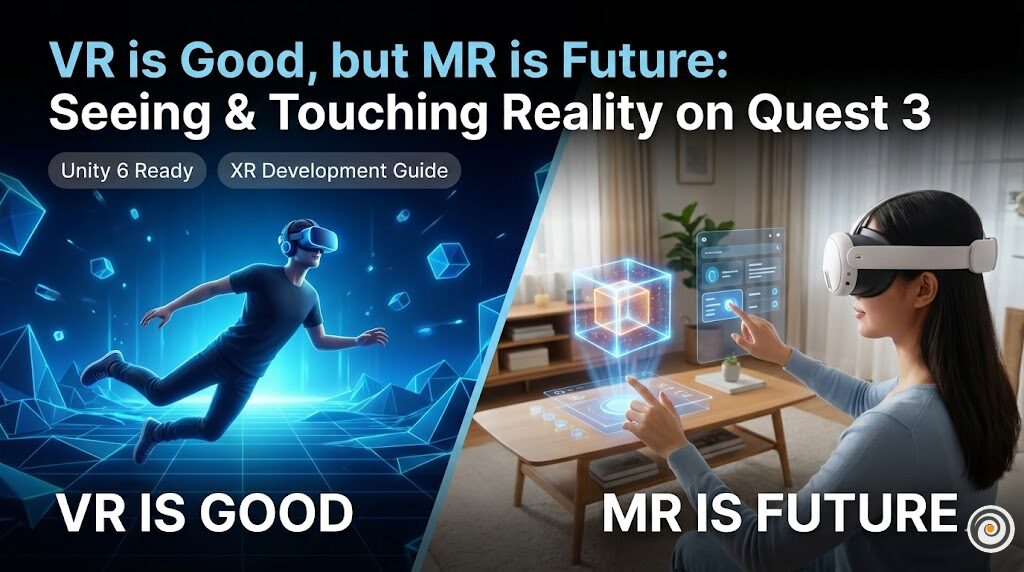
If you have tried the Meta Quest 3, you know exactly what I am talking about. When you put on the headset and see your own living room clearly in full color, it feels like magic. That is Mixed Reality (MR).
Virtual Reality (VR) is great for escaping the world. But Mixed Reality is about enhancing the world. Imagine playing a board game on your real dining table or watching a virtual TV screen floating on your real wall. That is the future!
Today, I will show you how to enable Passthrough in Unity for Quest 3. It is easier than you think. No complex coding, just the right settings!
Why Quest 3 Passthrough is a Game Changer?
On the old Quest 2, the passthrough was grainy and black & white. You couldn’t read your phone or drink coffee without spilling it.
But Quest 3 has Dual RGB Cameras and a depth sensor. It captures the real world in high resolution and color. This allows us to create “Digital Overlays” that feel like they are truly sitting in your room.
Step-by-Step: Enabling Passthrough in Unity
Let’s stop talking and start building! Follow these exact steps to turn your VR project into an MR project.
1. Prerequisites
Unity Version: 2022.3 LTS or newer (Unity 6 is also fine!).
Hardware: Meta Quest 3 (or Quest 2/Pro, but Quest 3 looks best).
SDK: You need the Meta XR All-in-One SDK from the Asset Store.
2. Project Setup
First, make sure your Unity project is ready for Android.
Go to
File > Build Settingsand switch the platform to Android.Go to
Edit > Project Settings > XR Plug-in Management.Click the Android tab and check the box for Oculus (or OpenXR if you are using the newer workflow).
3. Replace the Camera
Standard Unity cameras don’t work well with Meta’s tracking. We need the official rig.
Delete the Main Camera from your scene.
Search for
OVRCameraRigin your Project window (it comes with the Meta SDK).Drag and drop
OVRCameraRiginto your Hierarchy.
4. The Magic Setting: OVRManager
Now, we tell the headset “Hey, turn on the external cameras!”
Select the
OVRCameraRiggame object.In the Inspector, look for the
OVRManagercomponent.Find the section “Quest Features” (or General).
Check the box “Passthrough Capability Enabled” (or “Passthrough Support: Supported”).
5. Add the Passthrough Layer
This is the most important step. Without this script, you will just see blackness.
With
OVRCameraRigstill selected, click Add Component.Search for and add the script:
OVRPassthroughLayer.Crucial Setting: In this component, look for Placement. Change it to “Underlay”.
Underlay means: “Draw the real world behind my virtual objects.”
6. The “Transparent” Trick
By default, Unity renders a blue skybox. We need to make the background transparent so the real world shows through.
Expand your
OVRCameraRigin the Hierarchy.Find
TrackingSpace > CenterEyeAnchor. This is your actual camera.In the Camera component, change Clear Flags to Solid Color.
Click the Background color box and set the Alpha (A) to 0. The color should look black/transparent.
Pro Tip: If you are using URP, you also need to disable “Post Processing” in your Camera settings, or the transparent background might not work!
Testing Your App
Build and run the app on your Quest 3.
Result: You should see your real room (Passthrough) with your Unity 3D objects floating in it!
Troubleshooting: If the screen is black, double-check that your Camera Alpha is 0 and that
OVRPassthroughLayeris set to “Underlay”.
Conclusion
And just like that, you are a Mixed Reality Developer! 🚀
The future isn’t just about building virtual worlds; it’s about blending them with our reality. Try adding a simple 3D Cube to your scene and see how it feels to walk around it in your own room.